
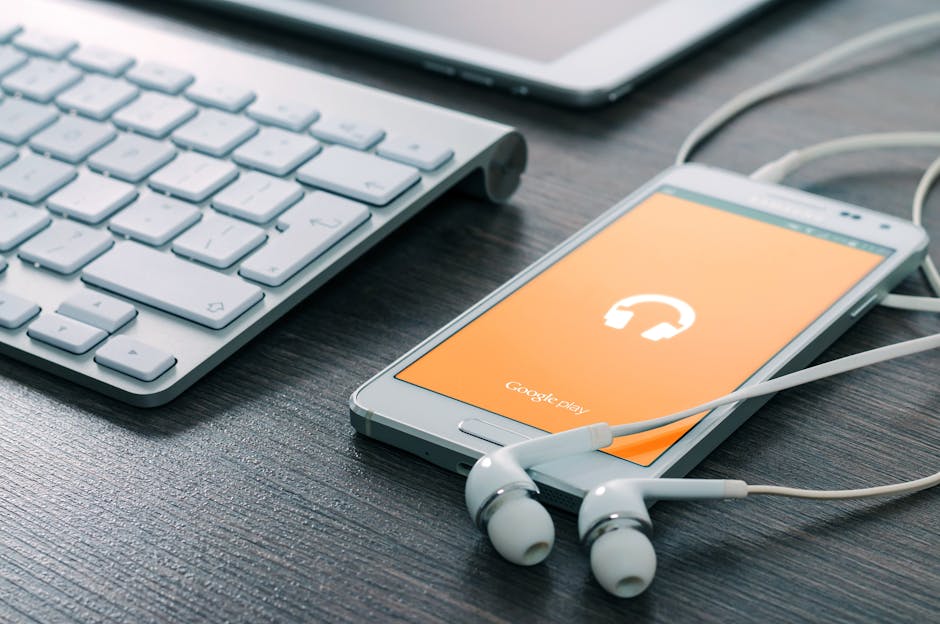
If you're hunting for a free media player that doesn't suck, you've got legit options. The good news? You don't need to spend money. The better news? The best free players are actually really good at what they do.
Let's be real though. A media player is just the foundation. If you want to actually enjoy entertainment the way it's meant to be experienced, you need quality content too. That's why exploring platforms like DECTV alongside a solid player makes sense. But first, let's talk about the players themselves.
Related: What Is a Media Reel? Guide to Entertainment Content
Related: Best Ways to Find Music in 2026: Your Complete Guide
Related: Top UMG Artists 2026: The Complete Ranking & Guide
Related: Best Media Player Apps 2026: Top 6 Ranked
Related: Best Media Player 2026: Top 6 Ranked
What Is a Free Media Player?
A free media player is software that plays video and audio files on your computer, phone, or connected device. No subscription. No hidden costs. You download it, install it, and start watching your files.
The catch? Not all free players are created equal. Some are bloated with ads. Some crash constantly. Some barely support modern video formats. The ones we're recommending? They actually work.
VLC Media Player: The Gold Standard
VLC is the undisputed champion of free media players. It's open-source, which means thousands of developers worldwide have looked at the code and made it better. It's been around forever and it's still the most recommended option by reviewers and tech experts.
Here's what makes VLC your best bet:
- Plays almost everything. MKV, AVI, MP4, MOV, FLV, WMV, FLAC, AAC, MP3. Seriously, if the file exists, VLC probably plays it.
- Cross-platform. Windows, Mac, Linux, iPhone, Android. Use it wherever you are.
- Lightweight. Downloads in seconds, doesn't hog your RAM, launches instantly.
- Totally free. No ads. No premium tier. No upselling.
- Portable version available. Run it off a USB drive. No installation needed.
Setting up VLC takes about 30 seconds. Go to videolan.org, download for your OS, run the installer, and you're done. Open any video file and it just works.
The interface is straightforward. Menus are clear. Playback controls are right where you expect them. There's an equalizer if you care about audio tweaking, and basic video controls for brightness and contrast.
VideoSolo Player: Sleek and Simple
If VLC feels a little dated to you (which, fair, the interface is pretty retro), VideoSolo Player is the modern alternative. It's scored top ratings as an overall media player experience because it balances power with simplicity.
VideoSolo's advantages:
- Clean, modern UI. Looks like it was designed in the last decade.
- Fast performance. Minimal lag, smooth playback even on older machines.
- Format support is solid. Handles MP4, MKV, AVI, MOV, and more without stuttering.
- Keyboard shortcuts. Power users will appreciate the customizable controls.
VideoSolo is best if you want something that feels less technical than VLC but still does everything you need. Download it, point it at your video files, hit play.
PotPlayer: For the Power Users

PotPlayer is frequently recommended as a solid alternative, especially if you want more under-the-hood controls. It's a favorite among people who watch a lot of video and care about detail.
Why people choose PotPlayer:
- Advanced playback controls. Frame-by-frame navigation, slow-motion, speed adjustment.
- Extensive format support. Codecs, subtitles, audio tracks. Handle it all.
- Customizable themes. Make it look however you want.
- Lightweight. Fast startup, smooth playback even on weak hardware.
PotPlayer leans technical. If you're the type who reads documentation and tweaks settings, you'll love it. If you just want to press play and watch, VLC or VideoSolo might be less overwhelming.
How to Choose Your Free Media Player
Three questions to ask yourself:
1. How technical do you want to get?
Casual watcher? Go VLC or VideoSolo. Tweaker? Go PotPlayer.
2. What devices do you use?
Mostly desktop? Any of these work great. Mostly mobile? Make sure you grab the iOS or Android version.
3. What files do you actually play?
If it's standard MP4 or MKV, everything here handles it. If it's obscure formats, VLC gives you the best odds.
Honestly, you can't go wrong picking any of these three. They're all free, they all work, and none of them will disappoint you.
Free Players vs. Streaming Platforms
One thing to keep in mind: a free media player is different from a streaming platform. Your player works with files you already have (or download separately). It's local playback.
If you want to stream movies and shows without downloading files first, that's where platforms come in. Checking out entertainment streaming services gives you access to curated content, live performances, and artist interviews all in one place. Your media player stays in your toolkit for when you have files you want to play locally.
This combination works well. Local playback for your personal library, streaming for discovering new entertainment.
Setting Up Your Free Media Player (Quick Steps)

For Windows or Mac:
- Visit the official website (videolan.org for VLC, etc.)
- Click the download button for your OS
- Run the installer and follow the prompts
- Open the app and select a video file
- Hit play
For iPhone or Android:
- Open your device's app store
- Search for your chosen player
- Install the free version
- Open the app and grant file access permissions
- Navigate to your video files and start playing
That's it. Seriously. Most people overthink this. It's just download, install, play.
Premium Media Player Option: When Free Isn't Enough
If you're running a business, managing video content professionally, or you need advanced features like IP protection and analytics, SproutVideo is a professional-grade option. It offers ad-free customization, video analytics, up to 8K streaming quality, and serious content management tools.
But for personal use? Free is genuinely good enough. No asterisks needed.
Common Issues and Quick Fixes
Video won't play in my free media player:
Try VLC. It supports way more formats than most players. If VLC won't play it, the file might be corrupted.
Audio is out of sync with video:
Check your system's audio drivers. Update them. Then try a different player to see if it's the player or your system.
Subtitles aren't showing up:
Make sure the subtitle file is named the same as your video file and in the same folder. Most players will auto-detect them.
The player keeps crashing:
Restart your device first (yes, really). Then try a different player. If it's a specific file causing crashes, the file might be damaged.
Is VLC really completely free?
Yes. VLC is open-source software. There's no catch, no premium tier, no ads. It's maintained by volunteers and supported by donations. You can use it forever without paying anything.
Can I use a free media player on my smart TV?
Some free players have smart TV apps (VLC does). But honestly, most people use their TV's built-in player or streaming apps instead. Check if your TV model supports VLC in its app store.
Are free media players safe to download?
VLC, VideoSolo, and PotPlayer are all legit and safe. Always download from official websites though, not random third-party download sites. A fake version could have malware. Stick to the real source and you're fine. According to CISA (Cybersecurity and Infrastructure Security Agency), downloading software from official sources is a critical security best practice.
What's the difference between a codec and a format?
Format is the container (MP4, MKV, AVI). Codec is the compression method inside that container (H.264, VP9, HEVC). Your player needs to support both. VLC supports almost everything. Other players might not.